
Download the GUI#
Sign-up#
To get your own copy of Digichem, head to the main Digichem website and sign-up for the plan that best suits you. Your welcome email will contain links to download the program, as well as your unique license key that you’ll need to activate the program:

Below that, you’ll find your license key (which we’ll need later):
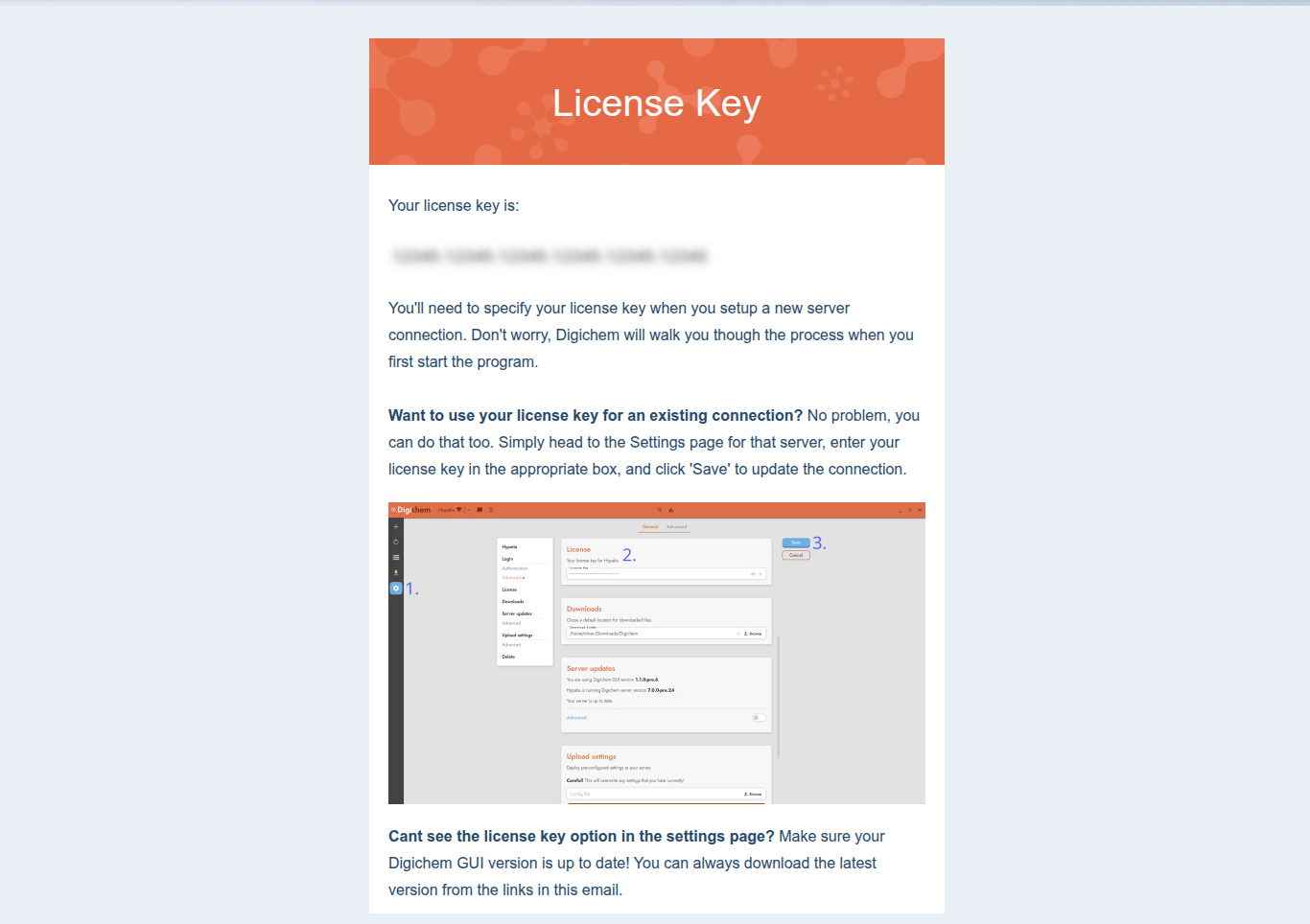
Simply click on the download link that matches your operating system, and your download will start automatically.
Download links#
In case you can no longer locate your welcome email, the latest GUI version can also be download from the links below:
Important
Digichem is proprietary software. You will not be able to use the program without a valid license key, even if you download the GUI from one of the links above. So, if you haven’t done so already, make sure to sign-up!
Mac OS versions#
The MacOS versions of Digichem are offered in two flavours. This is because there are two different version of MacOS, depending on whether your Mac uses an older intel CPU, or a newer Apple Silicon CPU. You should download the version of Digichem that matches your MacOS, otherwise things won’t work properly. Use this quick guide to work out which version you need:
If your machine is newer than 2023, you almost certainly want the normal Mac download.
If your machine is older than 2020, you almost certainly want the legacy Mac download.
If your machine is between these two dates, or you just want to double check, then open the ‘About This Mac’ window from the main Apple menu. Your processor type is listed under the Chip heading:
If your chip is listed as Apple M1, Apple M2 or similar, then you have an Apple Silicon Mac, and should use the normal Mac download.
If your chip is listed as Intel, then you have an older Intel Mac, and should use the legacy Mac download.